Radar Object Detector Using Arduino
Introduction
Have you ever wanted to build your own radar system that sweeps across the room, detects obstacles, and renders them onto a glowing neon-green desktop interface just like in the movies?

This project does exactly that! By combining an Arduino microcontroller, an HC-SR04 Ultrasonic Sensor, a Servo Motor, and the Processing 4 IDE for UI rendering, we can build a fully functional, real-time radar mapping system. The servo sweeps the ultrasonic sensor 180 degrees, measuring obstacle proximity at every angle step. The data is instantly streamed over serial communication to a custom Processing application, rendering a beautiful visual radar scope that paints obstacles in bright red.
Quick Links & Resources


How It Works: The A-Z Pipeline
The system is split into two halves: the physical hardware (sensing the environment) and the desktop visualizer (rendering the graphics).
[ Ultrasonic Sensor + Servo ] -> (Measures Distance per Angle)
                                       |
                                       v
                             [ Arduino Microcontroller ] -> (Formats Serial Data: "angle,distance.")
                                       |
                                       v
                              [ Processing 4 App ] -> (Draws sweeping Radar UI & highlights red objects)
- The Physical Sweep: The Arduino rotates a micro servo motor step-by-step from 15° to 165°, and then sweeps back. Mounted on top of this servo is the ultrasonic sensor.
- Eco-location Proximity: At each step, the ultrasonic sensor fires a short sound pulse. By measuring the flight time (in microseconds) until the echo bounces back, the Arduino calculates the exact distance to any obstacle.
- Serial Communication: The Arduino sends the current angle and measured distance over a USB Serial link formatted as a simple string:
angle,distance.. - Desktop Graphic Sweep: The Processing 4 application runs on your computer, listening on the same COM port. It parses the incoming strings, calculates the trigonometric coordinates in real-time, and draws a beautiful, glowing radar sweep lines, marking obstacles in red.
Hardware Connection & Circuitry
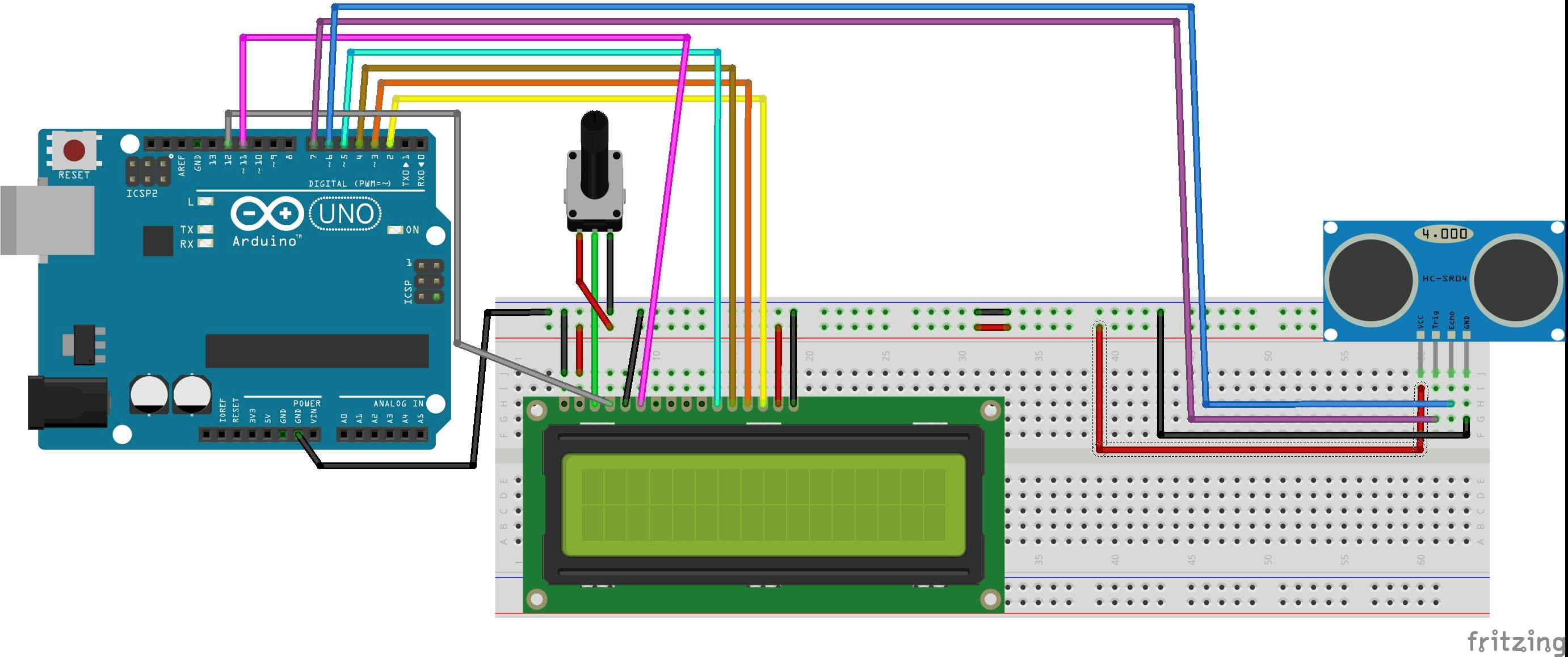
Setting up the circuit is straightforward. Below is the pin mapping:
| Component | Arduino Pin | Description |
|---|---|---|
| Ultrasonic Trig | Pin 10 | Triggers the sound pulse |
| Ultrasonic Echo | Pin 11 | Measures duration of echo return |
| Servo PWM Signal | Pin 12 | Drives the physical rotation angle |
| VCC & GND | 5V & GND | Power lines for the sensor and servo |
Arduino Microcontroller Code
The Arduino program controls the hardware loop. It handles the physical sweep of the servo motor and computes the ultrasonic distance measurements, printing them onto the Serial port for Processing to read.
// Includes the Servo library
#include <Servo.h>

// Defines Trig and Echo pins of the Ultrasonic Sensor
const int trigPin = 10;
const int echoPin = 11;

// Variables for the duration and the distance
long duration;
int distance;

Servo myServo; // Creates a servo object for controlling the servo motor

void setup() {
  pinMode(trigPin, OUTPUT); // Sets the trigPin as an Output
  pinMode(echoPin, INPUT);  // Sets the echoPin as an Input
  Serial.begin(9600);
  myServo.attach(12);       // Defines on which pin the servo motor is attached
}

void loop() {
  // Rotates the servo motor from 15 to 165 degrees
  for (int i = 15; i <= 165; i++) {
    myServo.write(i);
    delay(30);
    distance = calculateDistance(); // Calculates the distance measured by the sensor

    Serial.print(i);        // Sends the current degree into the Serial Port
    Serial.print(",");      // Separator character needed by Processing IDE for indexing
    Serial.print(distance); // Sends the distance value into the Serial Port
    Serial.print(".");      // Terminating character needed by Processing IDE for parsing
  }

  // Repeats the previous lines in reverse (from 165 back to 15 degrees)
  for (int i = 165; i > 15; i--) {
    myServo.write(i);
    delay(30);
    distance = calculateDistance();
    Serial.print(i);
    Serial.print(",");
    Serial.print(distance);
    Serial.print(".");
  }
}

// Function for calculating the distance measured by the Ultrasonic sensor
int calculateDistance() {
  digitalWrite(trigPin, LOW);
  delayMicroseconds(2);

  // Sets the trigPin on HIGH state for 10 microseconds to fire a pulse
  digitalWrite(trigPin, HIGH);
  delayMicroseconds(10);
  digitalWrite(trigPin, LOW);

  duration = pulseIn(echoPin, HIGH); // Reads echoPin flight time in microseconds
  distance = duration * 0.034 / 2;    // Speed of sound calculation (divided by 2 for round-trip)
  return distance;
}
Processing 4 Visualizer GUI Code
Processing is a flexible software sketchbook and environment designed to write graphical interfaces. This code reads the incoming serial data streams over the COM port and handles all coordinate transformations (sin and cos projections) to draw the sweeping radar arcs and target pins.
import processing.serial.*;      // imports library for serial communication
import java.awt.event.KeyEvent; // imports library for reading the data from the serial port
import java.io.IOException;

Serial myPort; // defines Object Serial

// Coordinate and data variables
String angle = "";
String distance = "";
String data = "";
String noObject;
float pixsDistance;
int iAngle, iDistance;
int index1 = 0;
int index2 = 0;
PFont orcFont;

void setup() {
  size(1200, 700); // Set your screen resolution
  smooth();

  // Starts the serial communication.
  // Note: Adjust "COM5" below to match the serial port your Arduino is connected to
  myPort = new Serial(this, "COM5", 9600);
  myPort.bufferUntil('.'); // reads data up to the terminating '.' character
}

void draw() {
  fill(98, 245, 31);
  // Simulating motion blur and slow fade of the sweeping radar line
  noStroke();
  fill(0, 4);
  rect(0, 0, width, height - height * 0.065);

  fill(98, 245, 31); // Glowing green color
  // Calls the functions to render the UI components
  drawRadar();
  drawLine();
  drawObject();
  drawText();
}

// Event triggered when new serial data is buffered
void serialEvent (Serial myPort) {
  // Reads incoming string until the dot '.' character
  data = myPort.readStringUntil('.');
  data = data.substring(0, data.length() - 1);

  index1 = data.indexOf(",");              // Find the comma separator
  angle = data.substring(0, index1);       // Extract angle degrees
  distance = data.substring(index1 + 1, data.length()); // Extract distance in cm

  // Convert text variables into numeric integers
  iAngle = int(angle);
  iDistance = int(distance);
}

// Renders the background radar grid and range arcs
void drawRadar() {
  pushMatrix();
  translate(width / 2, height - height * 0.074); // Shift coordinates to radar hub
  noFill();
  strokeWeight(2);
  stroke(98, 245, 31);

  // Draw the range concentric arcs
  arc(0, 0, (width - width * 0.0625), (width - width * 0.0625), PI, TWO_PI);
  arc(0, 0, (width - width * 0.27), (width - width * 0.27), PI, TWO_PI);
  arc(0, 0, (width - width * 0.479), (width - width * 0.479), PI, TWO_PI);
  arc(0, 0, (width - width * 0.687), (width - width * 0.687), PI, TWO_PI);

  // Draw the angle radial dividers
  line(-width / 2, 0, width / 2, 0);
  line(0, 0, (-width / 2) * cos(radians(30)), (-width / 2) * sin(radians(30)));
  line(0, 0, (-width / 2) * cos(radians(60)), (-width / 2) * sin(radians(60)));
  line(0, 0, (-width / 2) * cos(radians(90)), (-width / 2) * sin(radians(90)));
  line(0, 0, (-width / 2) * cos(radians(120)), (-width / 2) * sin(radians(120)));
  line(0, 0, (-width / 2) * cos(radians(150)), (-width / 2) * sin(radians(150)));
  line((-width / 2) * cos(radians(30)), 0, width / 2, 0);
  popMatrix();
}

// Renders red indicator dots when obstacles are detected
void drawObject() {
  pushMatrix();
  translate(width / 2, height - height * 0.074);
  strokeWeight(9);
  stroke(255, 10, 10); // Neon red indicator
  pixsDistance = iDistance * ((height - height * 0.1666) * 0.025); // Map cm to pixel dimensions

  // Limit active detection sweep to a 40cm range
  if (iDistance < 40) {
    // Trigonometric line draw projecting the detected object
    line(pixsDistance * cos(radians(iAngle)), -pixsDistance * sin(radians(iAngle)), (width - width * 0.505) * cos(radians(iAngle)), -(width - width * 0.505) * sin(radians(iAngle)));
  }
  popMatrix();
}

// Renders the main sweeping green line
void drawLine() {
  pushMatrix();
  strokeWeight(9);
  stroke(30, 250, 60);
  translate(width / 2, height - height * 0.074);
  line(0, 0, (height - height * 0.12) * cos(radians(iAngle)), -(height - height * 0.12) * sin(radians(iAngle)));
  popMatrix();
}

// Renders the textual telemetry and radar headers
void drawText() {
  pushMatrix();
  if (iDistance > 40) {
    noObject = "Out of Range";
  } else {
    noObject = "In Range";
  }

  fill(0, 0, 0);
  noStroke();
  rect(0, height - height * 0.0648, width, height);
  fill(98, 245, 31);
  textSize(25);

  // Range indicators
  text("10cm", width - width * 0.3854, height - height * 0.0833);
  text("20cm", width - width * 0.281, height - height * 0.0833);
  text("30cm", width - width * 0.177, height - height * 0.0833);
  text("40cm", width - width * 0.0729, height - height * 0.0833);

  // Telemetry indicators
  textSize(40);
  text("TEAM HKS", width - width * 0.875, height - height * 0.0277);
  text("Angle: " + iAngle + " °", width - width * 0.48, height - height * 0.0277);
  text("Distance: ", width - width * 0.26, height - height * 0.0277);
  if (iDistance < 40) {
    text("        " + iDistance + " cm", width - width * 0.225, height - height * 0.0277);
  }

  // Grid Angle markings
  textSize(25);
  fill(98, 245, 60);
  translate((width - width * 0.4994) + width / 2 * cos(radians(30)), (height - height * 0.0907) - width / 2 * sin(radians(30)));
  rotate(-radians(-60));
  text("30°", 0, 0);
  resetMatrix();

  translate((width - width * 0.503) + width / 2 * cos(radians(60)), (height - height * 0.0888) - width / 2 * sin(radians(60)));
  rotate(-radians(-30));
  text("60°", 0, 0);
  resetMatrix();

  translate((width - width * 0.507) + width / 2 * cos(radians(90)), (height - height * 0.0833) - width / 2 * sin(radians(90)));
  rotate(radians(0));
  text("90°", 0, 0);
  resetMatrix();

  translate(width - width * 0.513 + width / 2 * cos(radians(120)), (height - height * 0.07129) - width / 2 * sin(radians(120)));
  rotate(radians(-30));
  text("120°", 0, 0);
  resetMatrix();

  translate((width - width * 0.5104) + width / 2 * cos(radians(150)), (height - height * 0.0574) - width / 2 * sin(radians(150)));
  rotate(radians(-60));
  text("150°", 0, 0);
  popMatrix();
}
Running the Project
To experience your new desktop radar in action, follow these simple setup steps:
- Upload the Arduino Sketch:
- Connect your Arduino Uno to your PC using a USB cable.
- Paste the Arduino Microcontroller Code into your Arduino IDE, verify it, and upload it to the board.
- Verify your COM Port:
- Under
Tools -> Port, verify the name of the active port (e.g.,COM5on Windows, or/dev/ttyUSB0on Linux).
- Under
- Execute Processing Sketch:
- Open the Processing 4 IDE on your computer.
- Paste the Processing 4 Visualizer GUI Code into a new sketch.
- Modify the line:
myPort = new Serial(this, "COM5", 9600);to match your verified port (e.g., replace"COM5"with your specific port number). - Press Run (the play icon) and watch the sweeping glowing radar map objects in real-time!